Overview
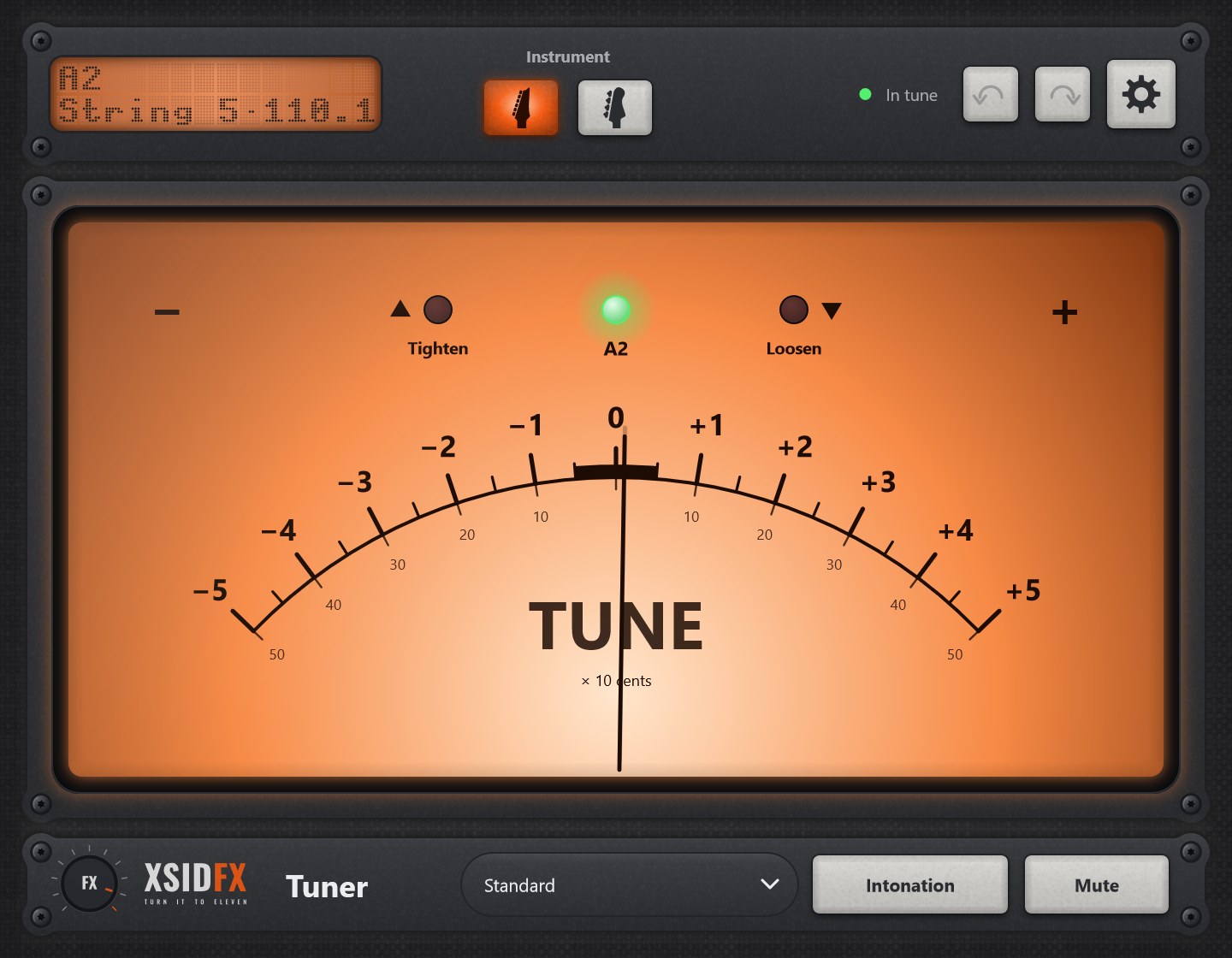
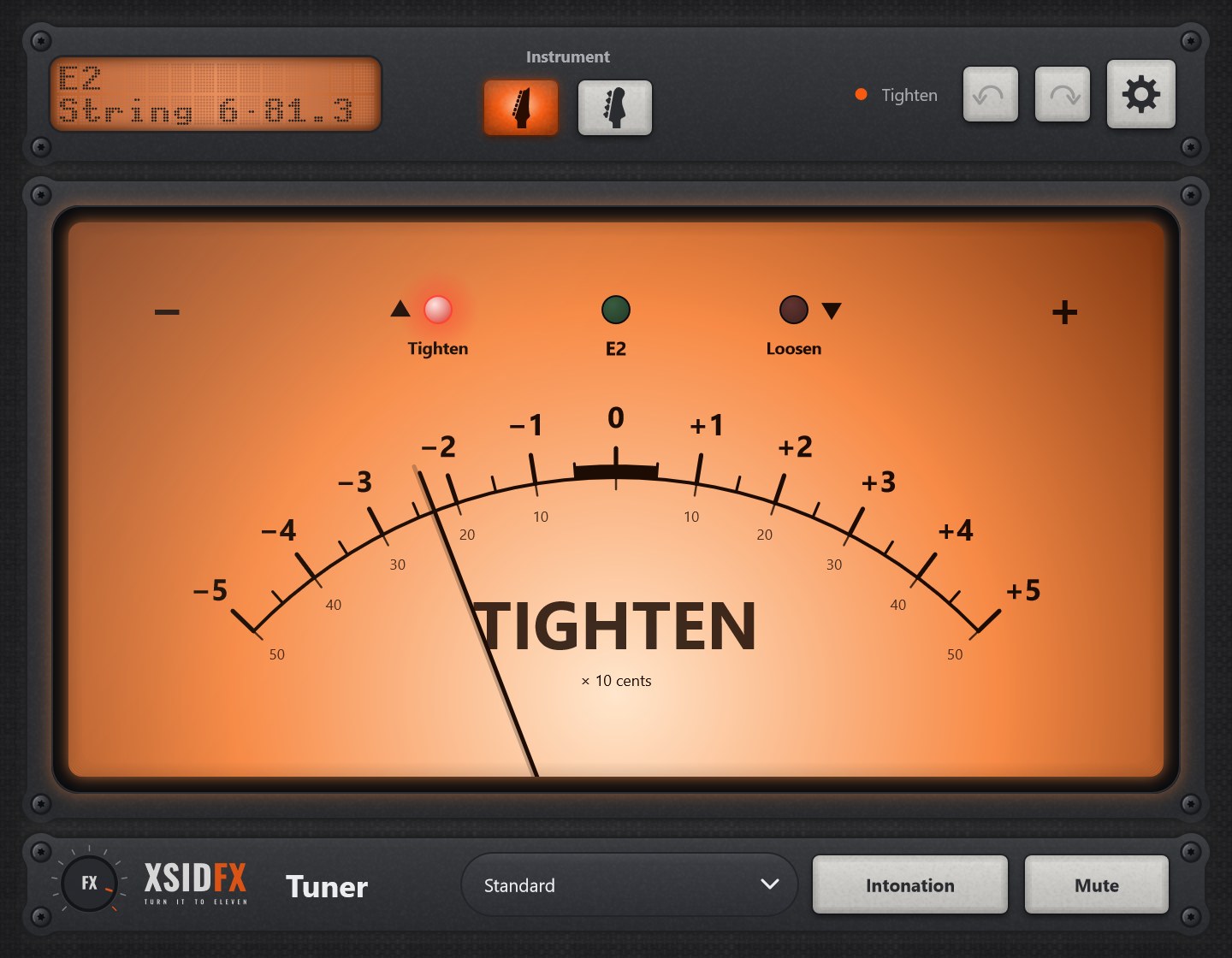
Tuner shows how far the note you play is from the nearest string of your tuning, on a lit meter with a needle. Lamps beside the scale tell which way to turn the peg: Tighten while the string is low, Loosen while it is high; the green lamp lights when it is in tune.
Its Intonation mode checks a guitar’s scale length: play the open string, then the 12th fret, and it says whether to move the saddle back or forward.
Getting started
- Choose Guitar or Bass at the top, and a tuning in the footer.
- Play one string at a time and turn the peg until the green lamp lights.
- Mute silences the output while you tune.
Controls
| Instrument | Guitar or bass, each with its own tuning, saved with the project. |
| Tuning | Ready tunings for 6, 7 and 8-string guitar and 4, 5 and 6-string bass, Custom (your own), and Chromatic (any note). |
| Mute | Silences the output while tuning; the sound passes through otherwise. |
| Intonation | Switches to the scale-length check: open string, then 12th fret. |
Settings
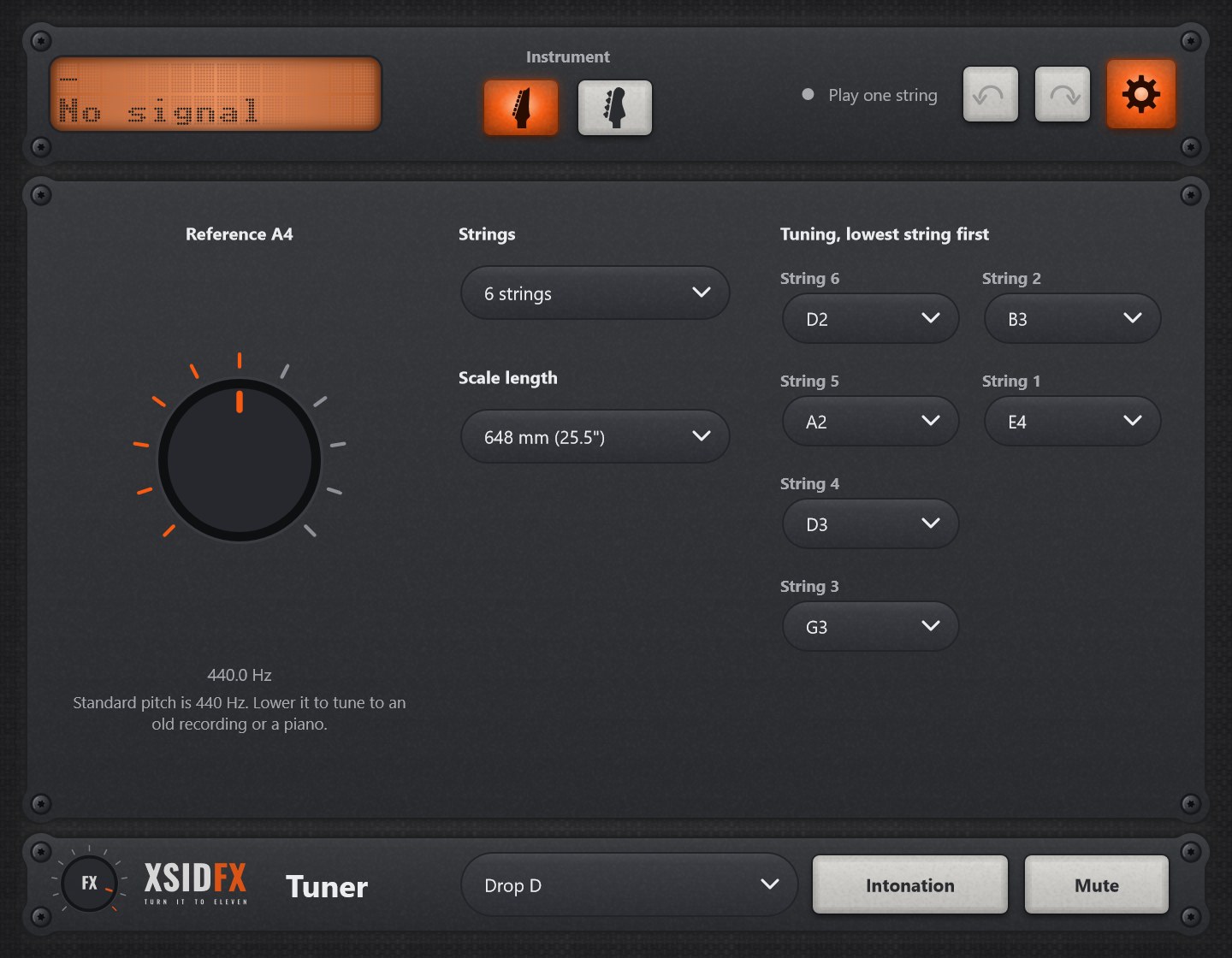
The gear in the header opens the settings panel; it covers the lower panel until the gear is clicked again.
| Reference A4 | The pitch of A, 430 to 450 Hz, 440 by default. |
| Strings | The number of strings and the note of each, for a Custom tuning. |
| Scale length | The instrument’s scale, for the intonation advice in millimetres. |
What the screen shows
The meter shows tens of cents either side of the note; the header shows the note, the string, its frequency and how far off it is. In Intonation mode the scale shows cents and the next step in large letters.
Tips
- Pluck lightly: a hard pluck sounds sharp for the first moment.
- For intonation, tune the open string first, then play the 12th fret clearly.
Technical notes
- Pitch by the YIN method, accurate to a fraction of a cent on steady tones from 31 Hz up.
- No Bypass and no level meters: the tuner only listens.
Common to every plugin
| The header | Every window opens with the same header. On the left a dot-matrix display shows the main reading large and the details under it; text that does not fit scrolls. Next to it a hint with a coloured dot says what the plugin is doing or what to do next. On the right: Undo and Redo arrows (up to 100 steps of everything done in the window), the Bypass button, and the gear, which opens the plugin's settings panel when it has one. |
| Knobs | Drag a knob up or down to turn it. Knobs that go both ways, or that have a natural middle, catch briefly at their centre. A double-click returns a knob to its default. |
| About and the demo | A click on the xsidfx logo in the footer opens About. In the demo version the plugin's name ends in (demo), its settings are not saved with your project, and About opens each time the window does. |