Overview
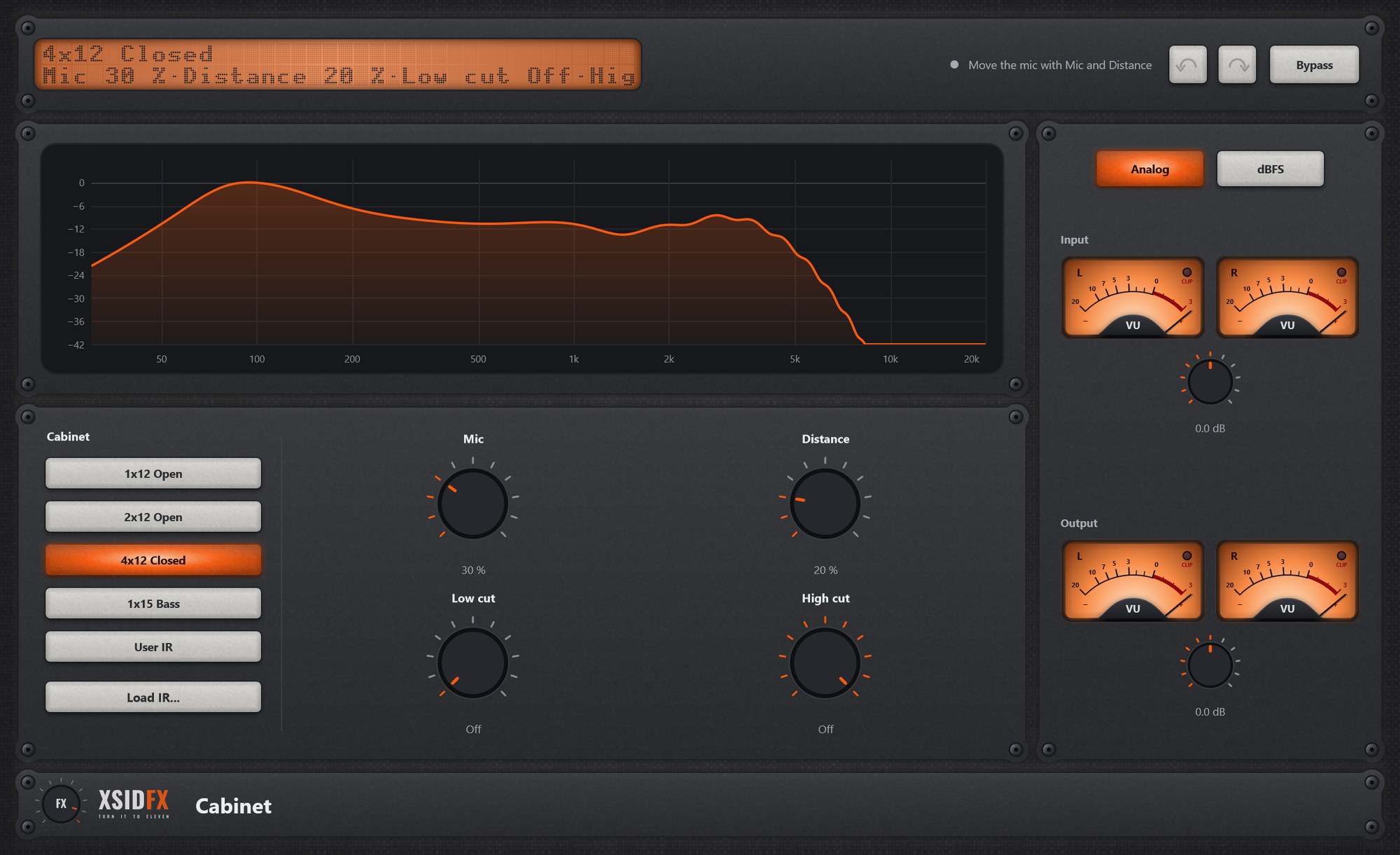
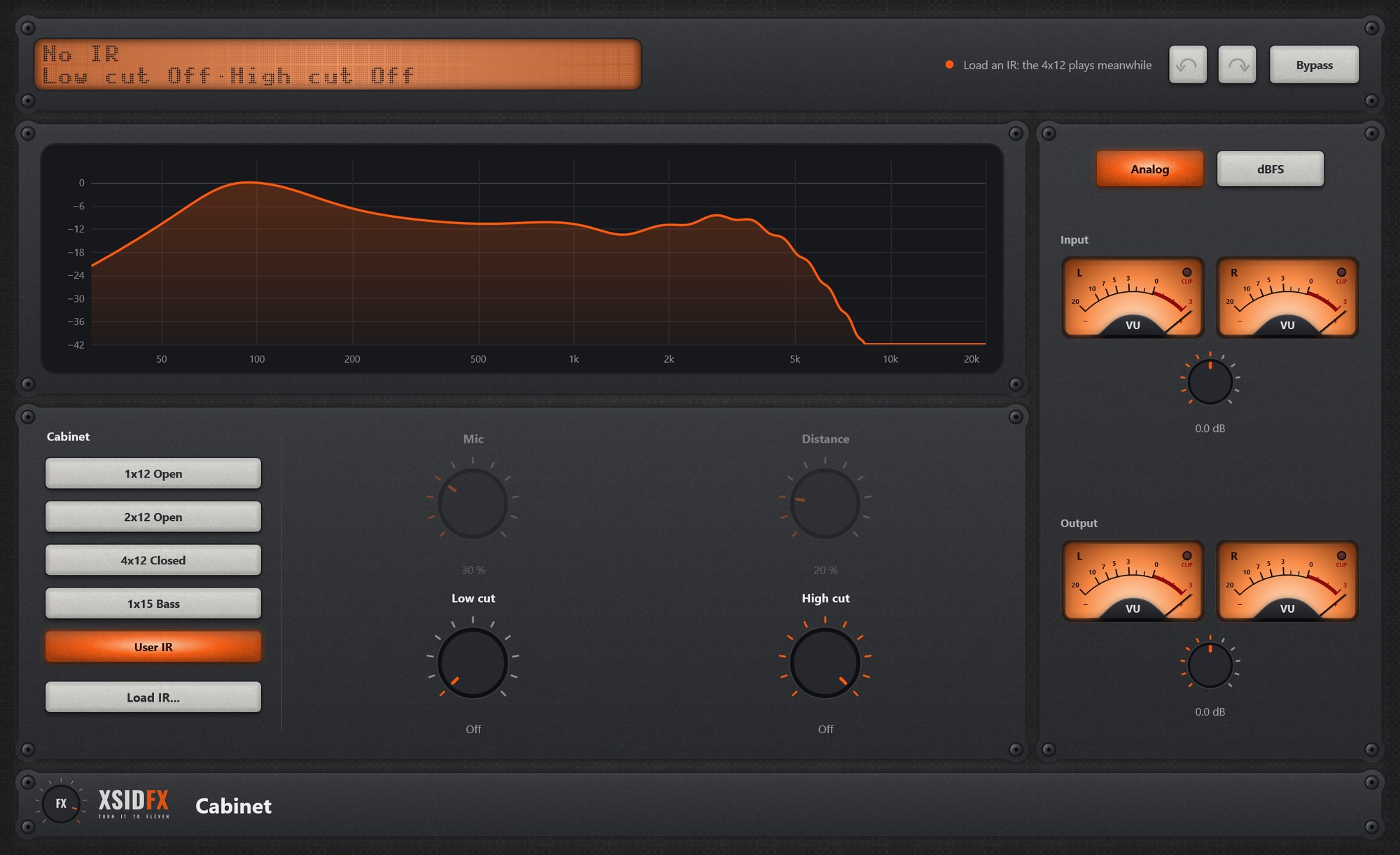
Cabinet is the speaker after Amp: it removes the harsh fizz above the speaker’s range and gives the body of the box. Choose a model and move the mic, or load an impulse response file.
Getting started
- Choose a model; move Mic towards the edge for a darker sound, Distance for more room.
Controls
| Cabinet | 1×12 Open, 2×12 Open, 4×12 Closed, 1×15 Bass, User IR. |
| Load IR… | Loads a WAV, AIFF or FLAC impulse response (up to 1 s, mono or stereo). |
| Mic | Centre (bright) to Edge (dark). |
| Distance | Close (more bass) to further away (some room). |
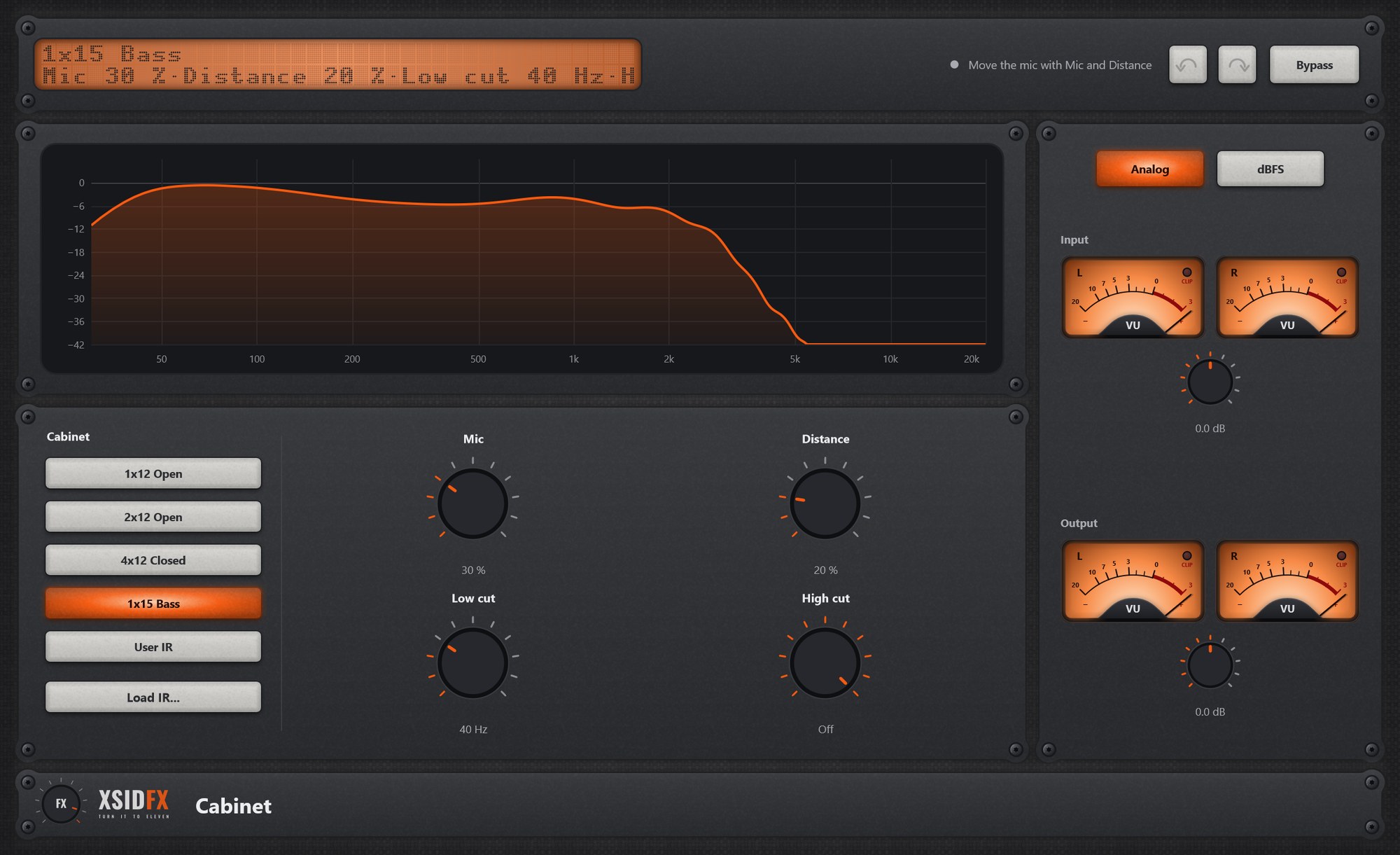
| Low cut, High cut | Trim the ends after the cabinet. |
Settings
This plugin has no settings panel: everything is on the front, and the gear is hidden.
What the screen shows
The frequency response of the cabinet in use, with the cuts.
Tips
- The cabinet never makes any frequency louder, so the output is quieter than the input: use Output.
- If a project’s IR file has moved, the 4×12 plays and the hint says so.
Technical notes
- Zero-latency convolution; switching cabinets crossfades without a click.
Common to every plugin
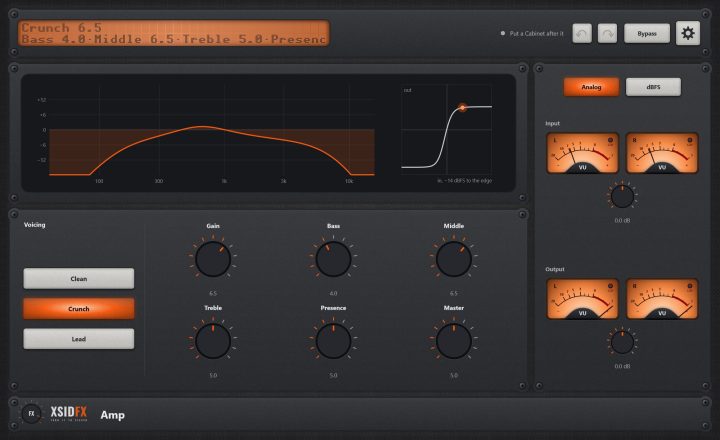
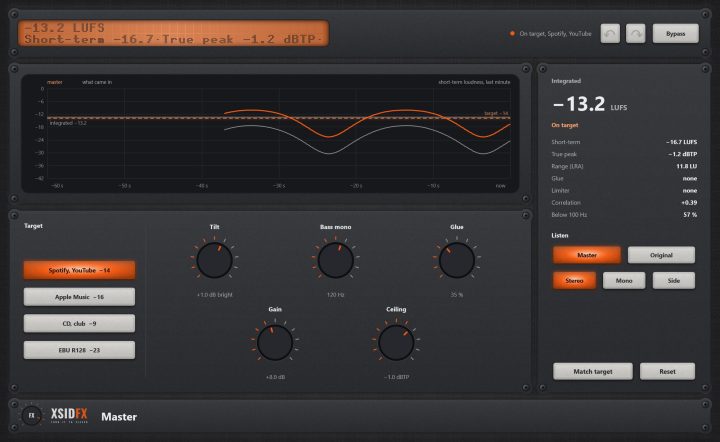
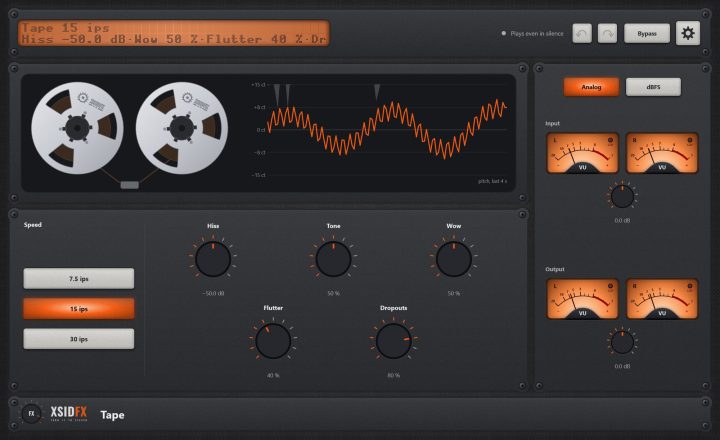
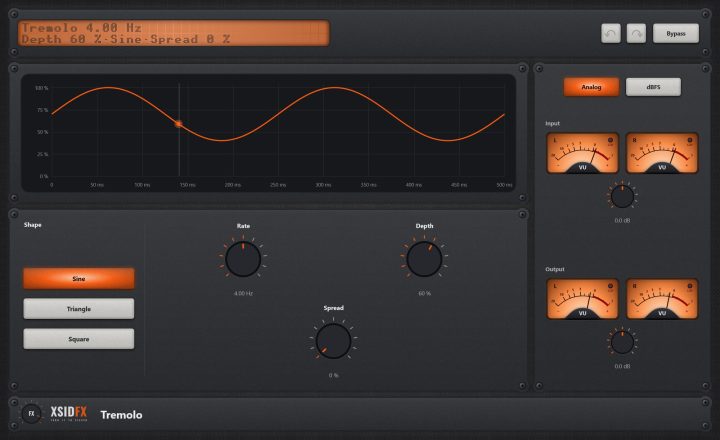
| The header | Every window opens with the same header. On the left a dot-matrix display shows the main reading large and the details under it; text that does not fit scrolls. Next to it a hint with a coloured dot says what the plugin is doing or what to do next. On the right: Undo and Redo arrows (up to 100 steps of everything done in the window), the Bypass button, and the gear, which opens the plugin's settings panel when it has one. |
| Bypass | With Bypass lit, the plugin lets the sound through untouched. It is the same switch as your DAW's own bypass for the plugin, so either can be used and automated. The input is held back by exactly the plugin's latency, so the timing stays right, and switching fades over 10 ms, so it never clicks. Bypass is not part of Undo. |
| Input and Output | Most plugins have a column on the right with a pair of VU meters for the input and the output, each with its own gain knob (plus or minus 24 dB). Analog shows the classic VU scale, dBFS the digital one. A click on a meter opens a large view of it. The CLIP lamp lights when a sample reaches 0 dBFS. |
| Knobs | Drag a knob up or down to turn it. Knobs that go both ways, or that have a natural middle, catch briefly at their centre. A double-click returns a knob to its default. |
| About and the demo | A click on the xsidfx logo in the footer opens About. In the demo version the plugin's name ends in (demo), its settings are not saved with your project, and About opens each time the window does. |