Overview
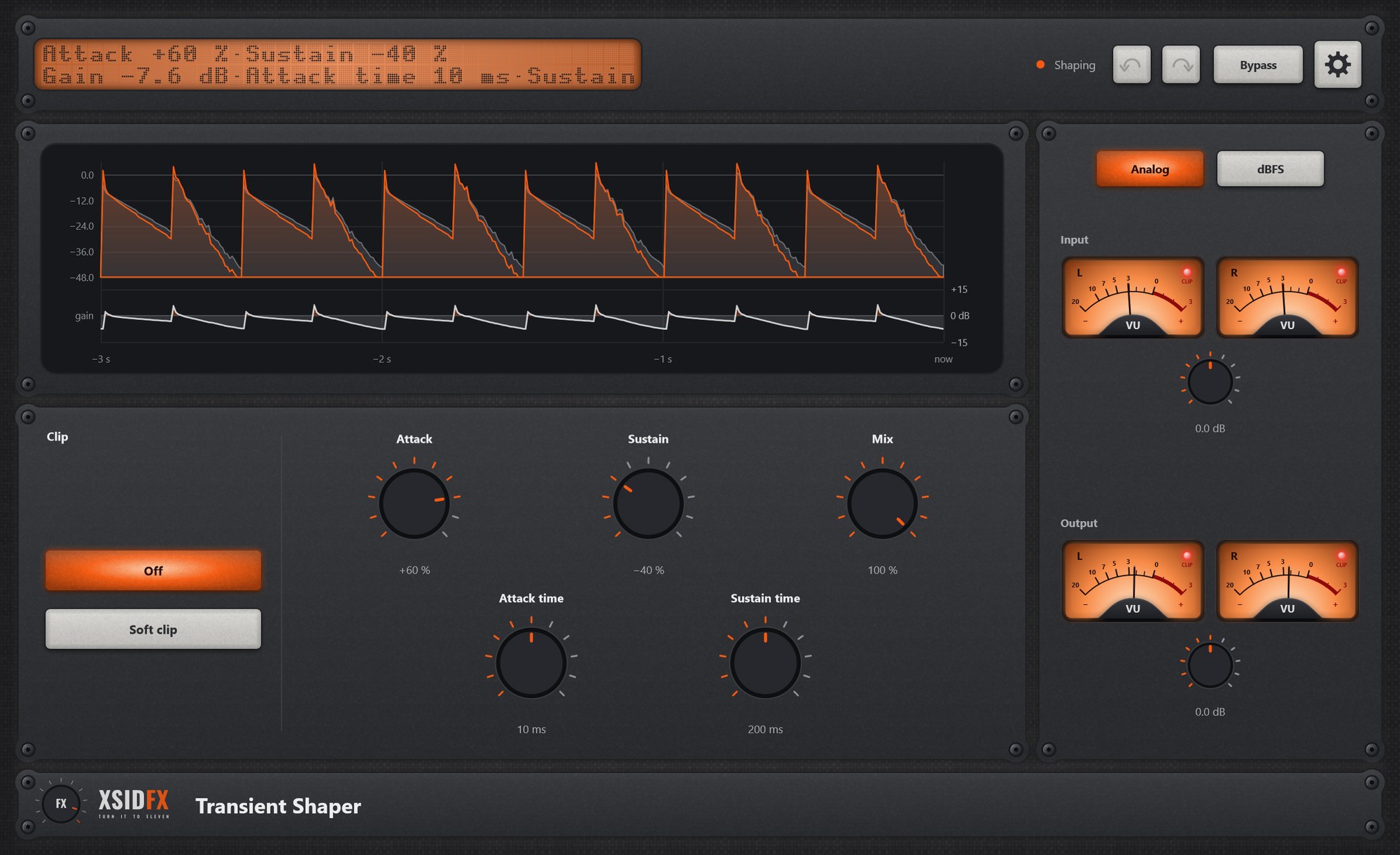
Transient Shaper listens to the shape of the sound, not its loudness: a hit is shaped the same whether loud or quiet, and steady tones are left alone.
Getting started
- Turn Attack up for more snap, down for softer hits; Sustain up for more ring, down for tighter.
Controls
| Attack | -100 % to +100 %: the start of each hit. |
| Sustain | -100 % to +100 %: what rings after it. |
| Attack time | How long the start of a hit counts as its start. |
| Sustain time | How long the tail is followed. |
| Mix | Shaped against dry. |
| Clip | Off or Soft clip, for boosted hits. |
Settings
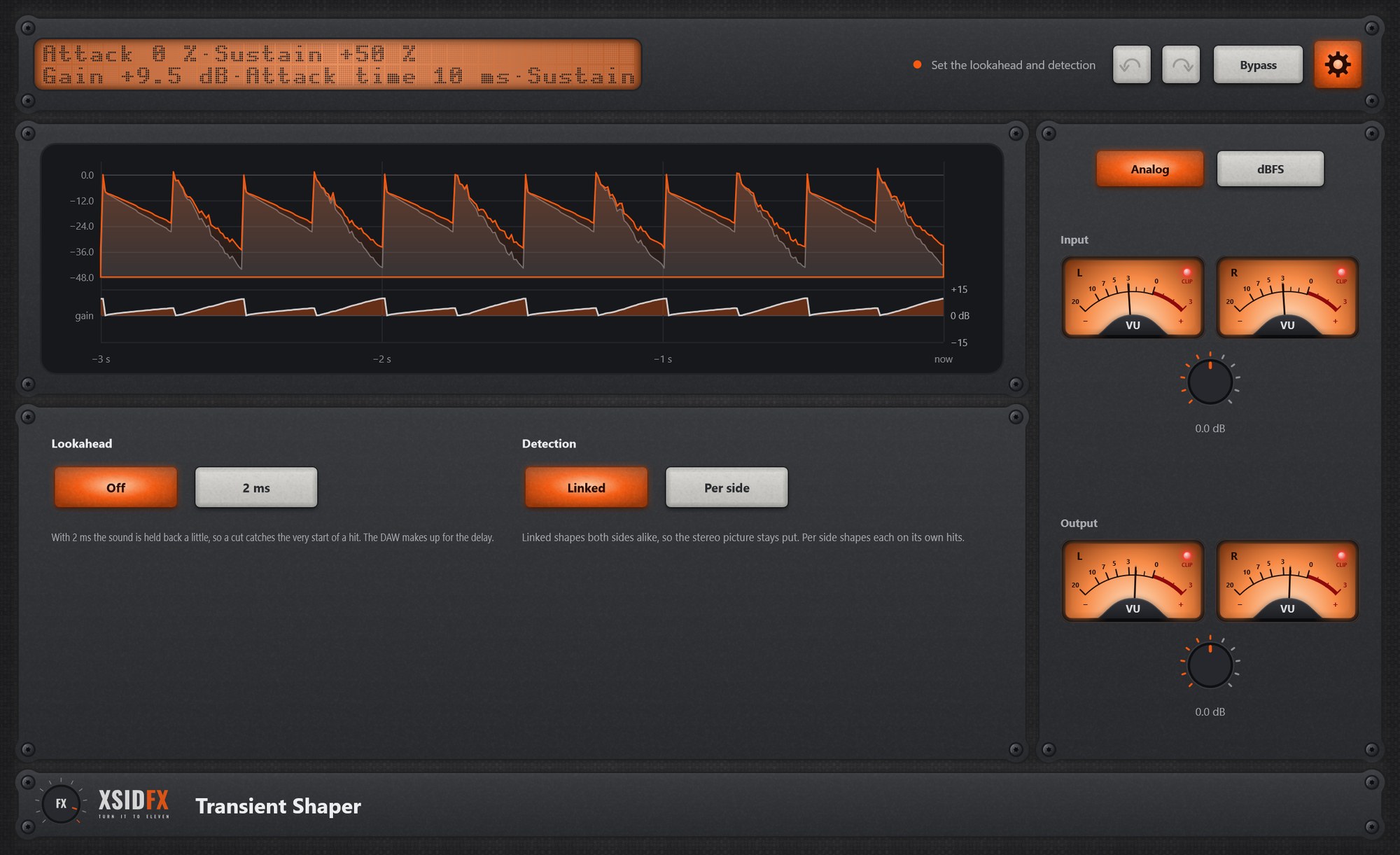
The gear in the header opens the settings panel; it covers the lower panel until the gear is clicked again.
| Lookahead | Off or 2 ms: lets a cut catch the very start. |
| Detection | Linked or Per side. |
What the screen shows
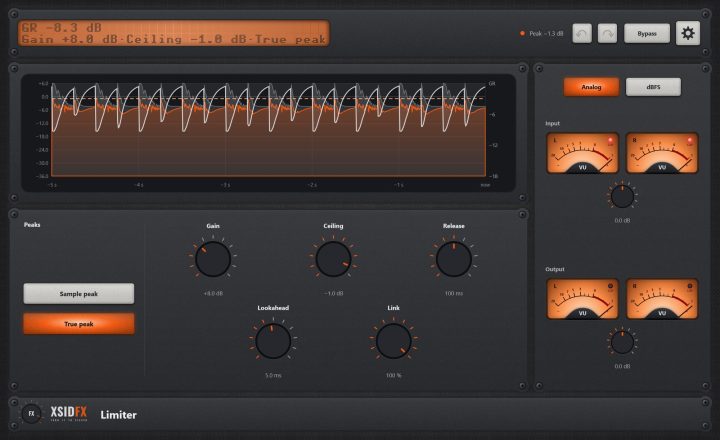
Three seconds of input and output peaks, and below them the gain the shaper applied.
Tips
- Sustain down on a room-miked drum tightens it like a gate, without cutting it off.
Technical notes
- With Attack and Sustain at 0 the sound passes bit for bit.
Common to every plugin
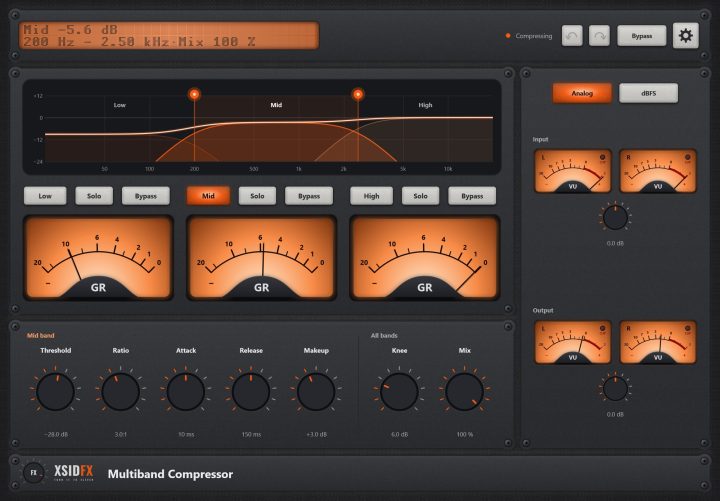
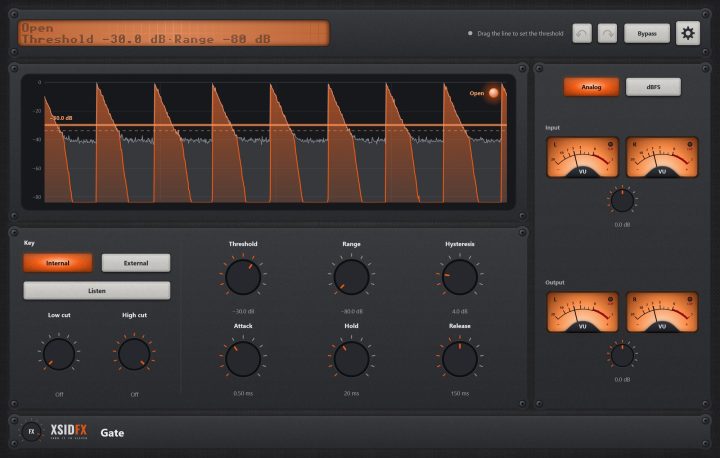
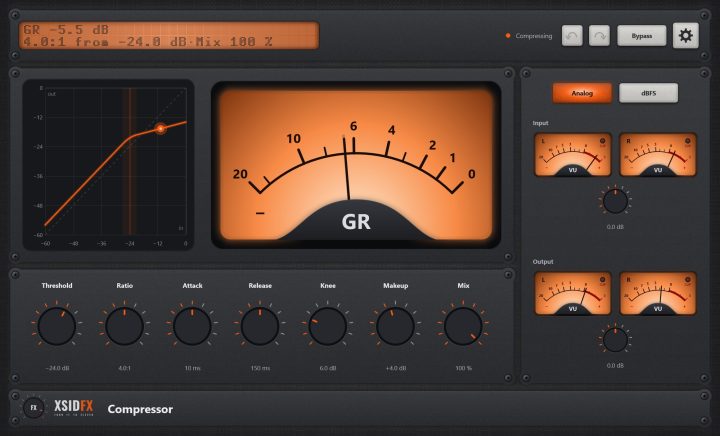
| The header | Every window opens with the same header. On the left a dot-matrix display shows the main reading large and the details under it; text that does not fit scrolls. Next to it a hint with a coloured dot says what the plugin is doing or what to do next. On the right: Undo and Redo arrows (up to 100 steps of everything done in the window), the Bypass button, and the gear, which opens the plugin's settings panel when it has one. |
| Bypass | With Bypass lit, the plugin lets the sound through untouched. It is the same switch as your DAW's own bypass for the plugin, so either can be used and automated. The input is held back by exactly the plugin's latency, so the timing stays right, and switching fades over 10 ms, so it never clicks. Bypass is not part of Undo. |
| Input and Output | Most plugins have a column on the right with a pair of VU meters for the input and the output, each with its own gain knob (plus or minus 24 dB). Analog shows the classic VU scale, dBFS the digital one. A click on a meter opens a large view of it. The CLIP lamp lights when a sample reaches 0 dBFS. |
| Knobs | Drag a knob up or down to turn it. Knobs that go both ways, or that have a natural middle, catch briefly at their centre. A double-click returns a knob to its default. |
| About and the demo | A click on the xsidfx logo in the footer opens About. In the demo version the plugin's name ends in (demo), its settings are not saved with your project, and About opens each time the window does. |