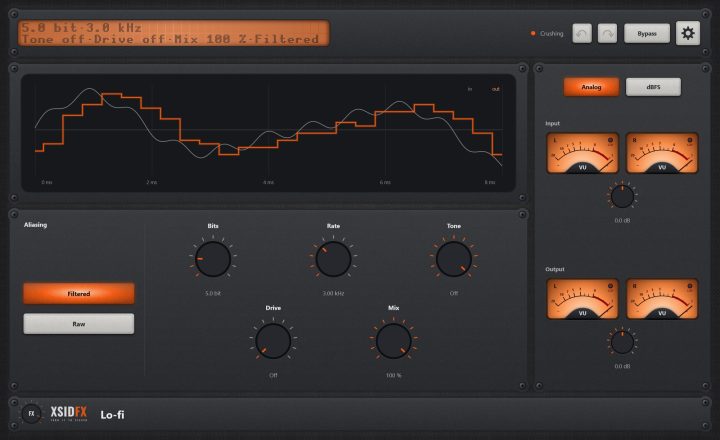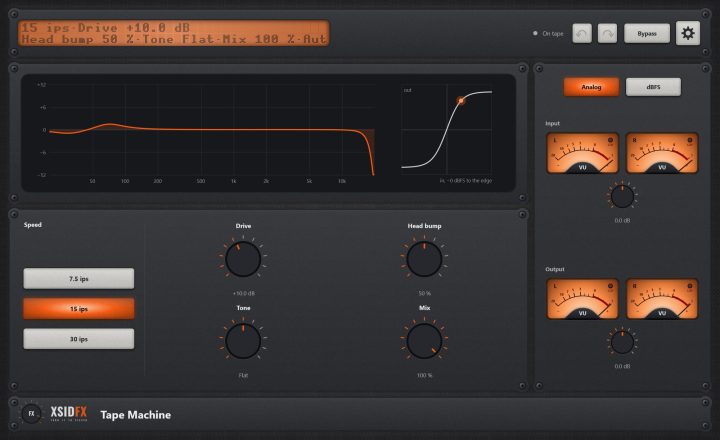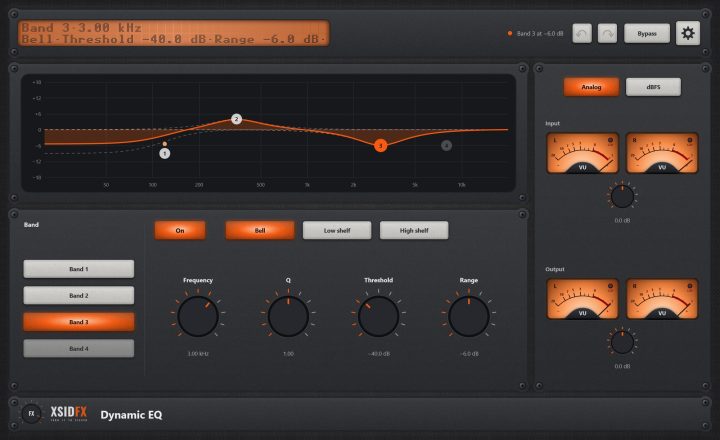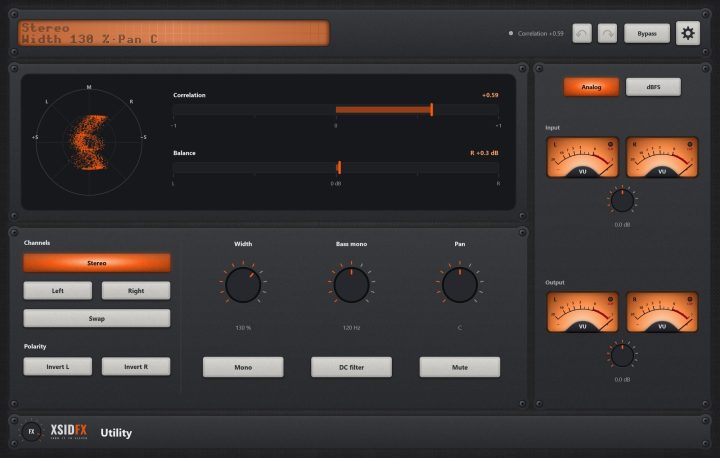
Overview
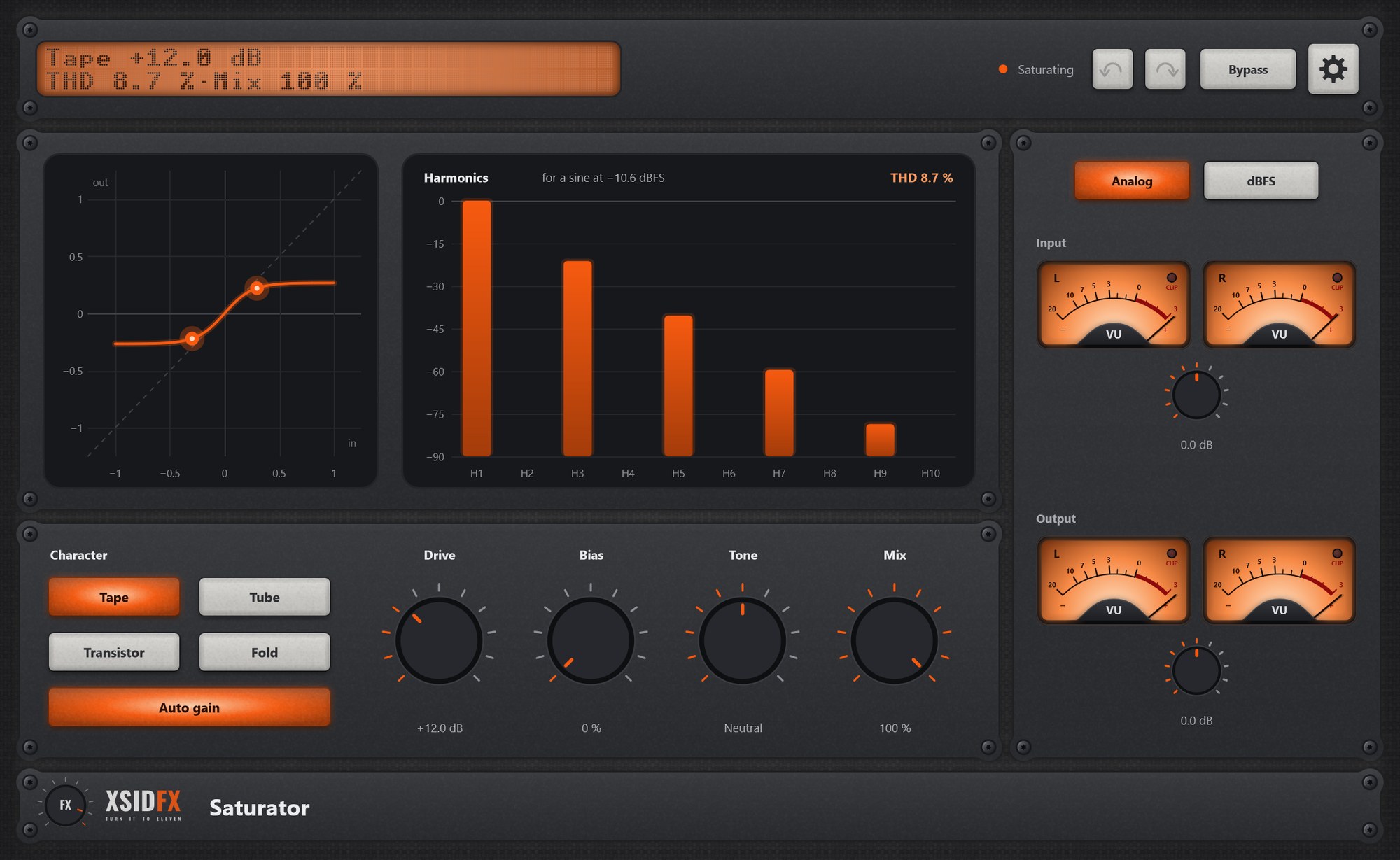
Saturator adds warmth or bite: Tape (soft and even), Tube (asymmetric, with even harmonics), Transistor (harder), Fold (folds loud peaks back for a synthetic edge). Bias adds even harmonics to any curve, Tone tilts the result darker or brighter.
Getting started
- Choose a character, raise Drive, keep Auto gain on to compare at equal loudness.
Controls
| Character | Tape, Tube, Transistor, Fold. |
| Drive | How hard, 0 to 36 dB. |
| Bias | Moves the curve’s working point: more even harmonics. |
| Tone | Darker or brighter. |
| Mix | Saturated against dry. |
| Auto gain | Keeps the loudness as Drive turns. |
Settings
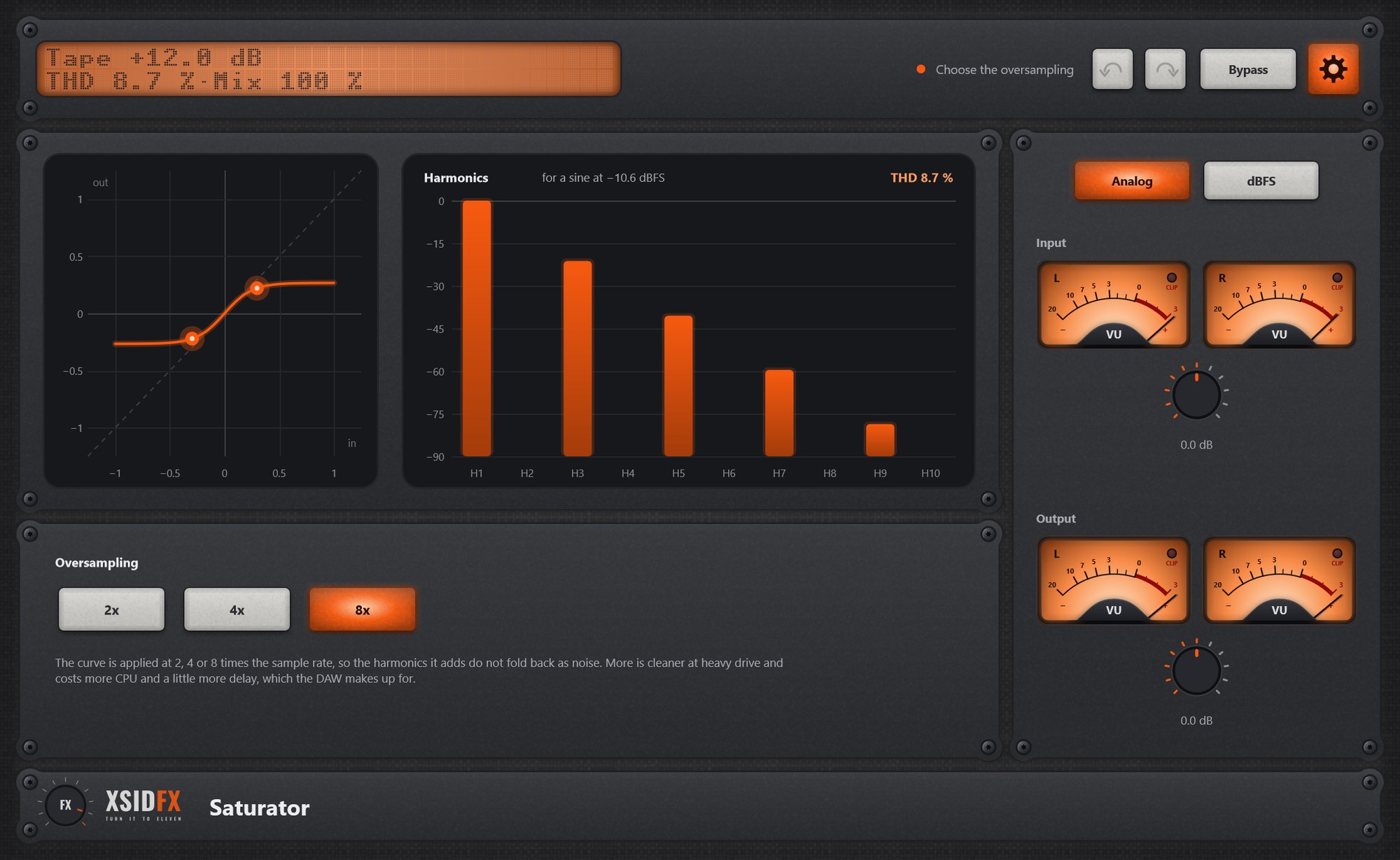
The gear in the header opens the settings panel; it covers the lower panel until the gear is clicked again.
| Oversampling | 2x, 4x or 8x; higher means fewer false tones on bright sound, at a little more delay. |
What the screen shows
The curve with dots at the input’s peaks, and bars for the harmonics H1 to H10 with the total distortion.
Tips
- Tube with a little Bias gives the classic warm even-harmonic colour.
Technical notes
- Oversampled processing; the dry signal goes through the same path, so Mix never phases.
Common to every plugin
| The header | Every window opens with the same header. On the left a dot-matrix display shows the main reading large and the details under it; text that does not fit scrolls. Next to it a hint with a coloured dot says what the plugin is doing or what to do next. On the right: Undo and Redo arrows (up to 100 steps of everything done in the window), the Bypass button, and the gear, which opens the plugin's settings panel when it has one. |
| Bypass | With Bypass lit, the plugin lets the sound through untouched. It is the same switch as your DAW's own bypass for the plugin, so either can be used and automated. The input is held back by exactly the plugin's latency, so the timing stays right, and switching fades over 10 ms, so it never clicks. Bypass is not part of Undo. |
| Input and Output | Most plugins have a column on the right with a pair of VU meters for the input and the output, each with its own gain knob (plus or minus 24 dB). Analog shows the classic VU scale, dBFS the digital one. A click on a meter opens a large view of it. The CLIP lamp lights when a sample reaches 0 dBFS. |
| Knobs | Drag a knob up or down to turn it. Knobs that go both ways, or that have a natural middle, catch briefly at their centre. A double-click returns a knob to its default. |
| About and the demo | A click on the xsidfx logo in the footer opens About. In the demo version the plugin's name ends in (demo), its settings are not saved with your project, and About opens each time the window does. |